

Removing barriers to MEANINGFUL technology use!
The e-Submission Insanity: Taking Control of Digitally Submitted Work -- Part 1

An example of a Google Drive folder when students have used a
a standard file naming convention to submit work.
There are tradeoffs for everything.
The "paperless" world of electronically submitted assessments/homework is truly a gift for those of us who struggle to keep tabs on the zillion+ sheets of paper we collect each year.
Yet, the tradeoff is having to develop a new system for management of our digitally collected student work. For many educators initially encountering Google Drive, or other collection tools for electronically submitted work, you may have this overwhelming feeling that your digital work environment is no more functional than a cluttered work space in the physical world.
Ready yourself for the good news! By adopting a few simple strategies, and by training your students to use those strategies religiously, you can regain your own sanity and become far more efficient in collecting and providing feedback on digital assessments.
Developing a Consistent Naming Convention
For many teachers, the process of paper collection has become a carefully crafted venture, At the very least, most teachers have a protocol for students when it comes to turning in physical papers. Name on the upper right of the page. Hour, period, and/or date just below that. Top left margin has assignment name. For many teachers, a similar naming/identification process has become the only way to keep tabs (and our sanity) on the flood of paperwork we consume regularly.
The movement to a digital collection platform will not shirk the need for a digital naming/identification equivalent. In fact, without identifying some sort consistent convention, and then STICKING TO IT, you may not be able to take advantage of some of the other niceties of digital collection (automatic time-stamping when assignments are collected, search and sort functions to easily find text within specific documents, and more).
The most beneficial naming convention in a digital platform is one that places the critical data in immediate view of the teacher without having to open the file/document to find the data. Generally this is done best in the document's name.
One example of a properly named document might be:
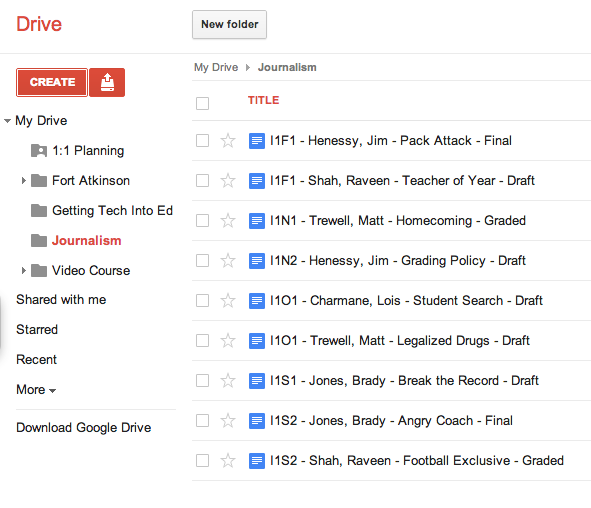 An example of a Google Drive folder when students have used a a standard file naming convention to submit work.
|
What is an assignment code? |
- The teacher is "under the gun" to provide prompt responses, so he/she is constantly opening files to see the status of the work (many kids will submit the work to you before it is done...we'll talk about that as well in a follow-up post). Much of that work is incomplete, leading to teacher frustration, and/or wasted teacher time. In this scenario, we've lost all of the efficiency of a digital turn-in system.
- Response time to student work is dramatically hampered because the teacher sets an arbitrary date for "review and response" to maintain sanity. As a result, students fall into the same old habits of waiting until the last minute to complete work. We've now lost momentum and enthusiasm for a more personalized, fluid turn-in system. This system is truly no different than a system where students turn in work physically on the due date and await the teacher response.
- Draft: This meant that the student had not completed the work and was not awaiting my feedback as an instructor. For me, this meant that I did not need to open that document and offer feedback at this time, unless the student communicated with me personally and asked for assistance.
- Final: This meant that the student had "completed" the work and was awaiting my feedback. As soon as I saw "Final" in the title, I opened that document and began to comment and assess. I did this even BEFORE official due dates, as the student was indicating he/she had submitted his/her best work at that time.
- Graded: I renamed the file "Graded" when I was finished offering feedback to the student. It was an indication to the student that there was some level of feedback in the document for the student. Even if I was sending them back to complete another draft with revisions, I indicated graded. When the student switched the work back to "Draft," I knew that the student had accepted my comments and was going to try again. Other students accepted the grade that I offered and elected not to revise, leaving the code "Graded."
As always, you will have to flex for some students. Be aware that some students are having their own struggles adapting organizational strategies to a digital world. The most important factor in all of our work is student learning -- a rule or naming convention should never get in the way of a student demonstrating what they have learned. Flex when you need to. Getting 95% of the students on board with your system will make managing the unique cases more palatable.
Episode 7: Managing digital video projects
Digital video projects can add levels of digital literacy to a classroom that would be difficult to achieve otherwise. This show gives some suggestions for making the integration of digital video projects in your classroom more manageable.
I've experimented in my classroom with digital video since my rookie year as a teacher. In fact, it was a first year video project that began to turn me on to the field of educational technology. For me, digital video is a transformational technology that educators can employ to explore new learning outcomes that were not even possible before video and home video editing was so readily available to consumers/educators.
However, it is clear that many educators do not feel comfortable with the concept of digital video shooting and editing, and it is understandable to hear educators admit they are intimidated by the technology and by the process. Today's show isn't going to work miracles for anyone in the audience. The first step to bringing digital video projects into your classroom is accepting the challenge to try something new, knowing that the process to becoming proficient in this skill area is a bumpy one with pitfalls along the way. If that doesn't sound too much like a pep talk, that's because it isn't. The ability to shoot video and create video projects isn't an unattainable skill. It just requires that teachers accept the reality that they may not know everything right away, and that they may have to rely on people and communities surrounding them to help them out (including students, who can, at times, be the greatest resource of all).
So, today's show is for those teachers who are willing to accept the challenge to accept digital video into your classroom and who are ready to jump head first into the deep end of the pool (I promise you, once you start, you will realize it isn't nearly as scary as you thought). It is also for those who are tinkering or who have worked with digital video for a while, yet are looking for some new tips to try out to make digital video projects even more successful in your classroom.
By listening to the show, you will get a brief mention on a series of tips that I've come up with to make digital video projects smoother and more efficient in their use of class time. The links from the show below will provide a brief synopsis of those tips.
Links from the Show
Pre-planning:
- Do an inventory on what equipment you have available to you
- If you do not have digital video cameras, digital cameras with video can work well.
- Find out what video editing program is available on the computer already
- Two common programs: Windows Movie Maker (pc) or IMovie (Mac)
- Based on your personal skill level, locate online tutorials matched to your ability level
- Examine your curriculum and determine what learning objectives MUST be demonstrated
- If you don't know what they are supposed to show you, how will they know?
- Engage your tech support network at this point and allow them to provide support to you
Before the shooting/editing begins:
- Clearly communicate your learning objectives immediately, in writing and verbally
- Provide a grading rubric before any planning begins
- Force students to actively engage in a rigorous pre-planning/storyboarding process
- This will allow you to avoid major errors before the hard/tedious work begins.
- If you are doing group work, take an ability/skills inventory of your students
- Create groups based on varied abilities and skills that will be needed
- Make sure you've got a "tech" or "video" person, a write, and actors in each group
- Provide just enough camera and software training without going into overkill mode
- Students are more capable with cameras than most adults...they use them daily
- Students will need an introduction into the layout of the video editing software
- Keep your expectations and the students ideas in the realm of realistic
- Feature films take thousands of man hours and lots of expensive equipment to create
- Setting realistic goals will make the end product more fulfilling and less intimidating
- Spend time teaching or showing kids various types of shots that can be done on cameras
- Interesting videos can be created by creatively thinking about the shots included
- Spend more time on this than on camera basics or software tutorials
- Give yourself more time than you think you need. I always overshoot by one week
Lights, Camera, Action: During shooting and editing
- While shooting in class may be fun, encourage students to do acting/shooting at home
- Acting/shooting can take a lot of valuable class time...keep that for the editing needs
- Save, save, save...and remind your students to do so as well
- Editing can use lots of computer resources that cause computers to crash
- Regular saving can help students to avoid "losing it all"
- Encourage students to keep files organized and in one common place
- If in groups, make sure all group members know how to access those files
- Constantly reiterate the learning objectives for the project
- Have "background" work that can be done at the same time as video editing
- While these are labor intensive projects, you will have completion at different times
- This will also help to keep kids on task and working toward finishing their project
- Maintain open communication between group members
- Dominant group members can kill the collaborative spirit...keep them at bay
- Encourage all students to utilize their skill set (they've identified) to contribute
Finishing the project and screening it
- Each video program has a procedure for "finishing" the movie (combining files into one file)
- Review that process with your students regularly
- Before the movie is finished and burned to CD/DVD, have the group review the movie
- Give them a copy of the rubric and have them score their project
- This will encourage them to make changes instead of saying, "Good enough!"
- Announce a screening day that will allow the whole class to view the projects
- Set a date for a pre-screening day "run through"
- This is where you check to make sure the files/cds/dvds all work on your computer
- This encourages students to finish on time and makes screening day flow better
- Stick to the standards set forth in your rubric -- beautiful movies that do not demonstrate learning should not be given a pass because they look nice
Final Tips
- Keep students focused and remind them they are not Hollywood producers
- Students tend to focus on details that do not impact the big picture of the movie
- Guide them through this by encouraging them to come back to it at the end
- Encourage students to do the editing at school
- While sometimes unavoidable, if the editing is done at one person's home, then they will be doing most of the work
- Digital video projects are powerful when the group is involved
- Be understanding...accidents happen and issues come up. Be flexible when you can.
- Start small -- big projects take lots of resources and lots of time
- For the beginner to succeed, starting small is an absolute ke
Tech Trial - Storyboard Pro:
This digital/electronic storyboarding software is a free program that allows students to do their storyboarding work on the computer. It provides the flexibility to move shots and scenes around, but it also encourages the directors to be incredibly detailed before they begin shooting. A sharp little program
Tech Trial - Teach with Video:
Steven Katz has put together a nice resource for teachers to come to for resources and ideas to improve their digital video projects. Steven has an impressive podcast, great ideas, and some useful resources on the website. This isn't geared to solely beginners or to experienced movie editors. There are a wide range of ideas and resources that visitors can utilize. Check it out, and make sure you check out his podcast.
If you've got questions, comments, ideas, suggestions, or want to share your use of non-linear PowerPoints with me, send it to: gettingtechintoed@gmail.com
Thanks for listening.
Brian Yearling
Host and Instructional Technology Enthusiast