

Removing barriers to MEANINGFUL technology use!
Breaking Down the Classrooms Walls for Professionals
 One of the unforeseen blessings of having an educational role such as ours, Instructional Technologies Coordinators, is the opportunity to regularly visit the classrooms of so many professional educators on a daily basis. I regularly learn more about becoming a better educator during these visits than I could have ever learned through years of "trial and error" in my own classroom. It is one of my greatest regrets that I did not seek out more opportunities to observe the professional practice of my colleagues when I was a classroom teacher.
At Waukesha North, a healthy culture of collaboration has been embraced throughout the building. As a key element of that, staff members are beginning to seize the opportunity to step outside of their own classrooms and to place their professional learning front and center, as they learn from their colleagues. Calling them "learning walks" or "instructional rounds," the goal is consistently the same -- learning to improve the craft of teaching by observing, reflecting, asking questions, and implementing.
Principal Jody Landish recently published a thoughtful, sincere, inspiring post about the instructional rounds taking place at North. Read her reflections related to the value of this level of collaboration and professional learning on her blog post - Instructional Rounds in Education -- Principal of the Purple Palace blog.
A Thing or Two to Teach Our Kids About Technology
I'm fortunate to have colleagues from around the district feeding me great articles when they find them. This article, forwarded to me by Butler teacher, Mollie Heilberger, points to a critical point of conversation. Thanks, Mollie, for bringing this to my attention.
A recent article from the New Tech Network blog serves as a reminder to us that just because a student is born in an era where technology is omni-present, that doesn't necessarily mean that they are innately knowledgeable about how to use that technology productively for academic or professional pursuits.
Digital Native Does Not Mean Digital Literate
The blog post talks about a false assumption that we are all increasingly at risk of making about our students. The assumption asserts that simply because our youth have grown up in an era where the Internet, computer access, Google, and Facebook are readily accessible, our kids innately know how to utilize the tools for meaningful academic work.

It is no wonder that we make this assumption. For many of us, our lack of comfort with technology, mixed with the popularity of that same technology with most young people (I dare you to find one who doesn't regularly use a smart phone, or at least know how a smart phone works) leads us to believe that young people somehow just "get it" when it comes to technology. Mix that with a little bit of naive, misguided confidence on behalf of many young people in masterfully using various forms of technology (I dare you to find a classroom of kids that doesn't have a least one "expert" technologist on software he/she has never used before in his/her life), and it's easy to understand why we tend to trust that somewhere along our genetic lineage a dominant technology trait was formed and turned on with the invent of Google.
This is NOT to say that kids don't have some mad skills when it comes to the use of technology. Some of them do -- many do. More importantly, they have never known the fear of "breaking it," which hinders/paralyzes so many adults when it comes to technology use. It simply means that we cannot assume that they all have the same comfort with technology, or that they all can use technology for the deeper side of research that they need to engage in to meaningfully learn.
There are still many valued lessons that come with age, wisdom, and experience that teachers bring to the academic experience. These skills and lessons transcend medium -- no technology comfort or expertise required to put these skills to work. That is at the core of what we must offer our students as we work with them. It is the guidance that they need as they employ the digital tools that are at their fingertips to do the hard work of learning.
And it is in that gap between our discomfort with technology and their lack of life and academic experience that students and teachers can meaningfully connect to teach and learn from each other. This is where teaching Essential Skills, such as digital citizenship and research come into play. They may not be measured on standardized tests, but they are the skills that will ultimately help students to fail/succeed in lifelong pursuits.
So, the next time you integrate some element of technology into your classroom practice, don't be afraid to spend some time teaching the kids a thing or two about how to use the technology to become more academically, professionally, and personally productive with the tools.
The e-Submission Insanity: Taking Control of Digitally Submitted Work -- Part 2
In our last article, we talked about the importance of crafting (and insisting upon) a naming strategy for digitally submitted work. This alone can be a valuable management strategy, but staff can put other measures in place to maintain a sense of sanity as more student work is turned in online.
This post focuses on a Folder Sharing/structure solution within Google Drive.
The Folder Sharing Concept in Google Drive
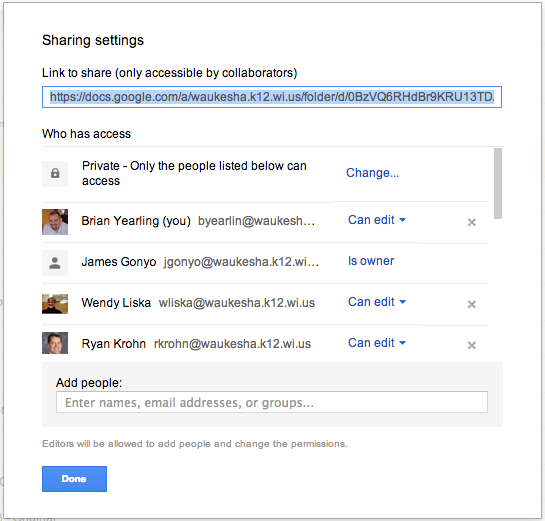
One of the core truths in Google Drive is that when a folder is created in Drive, the "properties" set for that folder are transferred to any documents or files within that folder (unless otherwise specified).
"Properties" refers to a few key elements when a user clicks the "Share" button on a folder or document in Google Drive:
- Whether that document is "Private," available to people within the domain, or open and available to the world, and
- Who specifically is being invited to view, edit, and comment on the document
The Folder Sharing Concept, then, focuses on using this principle to eliminate later confusion/frustration as students create one folder, set the sharing and viewing properties properly once for that folder, and then simply place all course related work in that folder for the rest of the year. This keeps an open line of communication between the student's course folder, and the teacher's access to that folder.
Setting Up Folder Sharing with Students
It is recommended that a teacher launch the Folder Sharing system with all of his/her students at a time when it makes sense to change fundamental operating procedures within the classroom. Moving all students at once to this system will make the transition cleaner and more manageable for the instructor. It also allows the classroom culture/expectations to shift at once.
Step 1: Develop a clear folder naming practice and general sharing guidelines to achieve consistency
- How do you want student folders to be labeled? (For student's organization, do more than just their name! Especially if they have more than one teacher.)
- Last Name, First Name - Subject
- Last Name - Teacher Name
- Last Name, First Name - Subject - Semester
- Do you want folders inside of that folder (nested or sub folders)?
- What level of sharing would you like students to give you? Viewing? Commenting? Editing?
- Editing is recommended...it gives you fullest access to the folders and files
Step 2: Create a "Class Folder" for your class(es) in your Google Drive
- Once students share a folder with you, it will benefit your efficiency to place those folders into a collective folder. Name the folder with clear identifiers, though. "American Lit - 2012 - Sem1"
Step 3: Reserve a lab/cart/computers and have students create the folder as a class
- While students can create this independently, it is worth the time and effort to be present to answer questions and to make sure the folder is set up properly the FIRST Time.
Step 4: As students share the folder with you, check the properties and drag into your "Class Folder"
- When the file arrives in your inbox, or in your Google Drive folder (look in "Shared with Me"), take a look at the properties to be certain they are set properly. Then, simply drag the folder up into the proper "Class Folder" in your Google Drive.
- You will not delete student access to the folder in dragging this into the "My Drive" section of Google Drive. It simply makes it easier for the instructor to find like student folders.
Step 5: Instruct students to place all work that is to be digitally submitted into that folder
- Remember that all files within that folder will take on the "properties" of the folder, unless otherwise specified by the student.
- Developing a file naming structure/code for the files in each folder will further assist instructors in efficiently assessing the work within that folder.
Tips to Teachers
 While the system is fairly simple and easy to use, there are some strategies that will make this work more seamless.
- Clear initial expectations will ease the student transition to a new turn-in model. Avoid accepting paper versions of the work when possible if the expectation is primarily electronic submission.
- Prior to using Google with students, determine if they have an active Google account with the district. The easiest method is to have students attempt to log in.
- Encourage students to share their folders with a parent/guardian as well.
- Even without a Google account, parents can view (and even comment/edit) the work. Here's a link to an article explaining options for sharing with non-Google users.
- Use commenting on docs shared with you to provide feedback. Printing assignments and placing feedback on the printed copy defeats the purpose of e-submissions (and creates another step for you -- so much for efficiency gained).
- Engage students in a discussion about the work using the discussion tool in Google Docs.
- Check in often. You'll be amazed at how quickly work piles up. Even when it isn't due!